Contact Us

If you still have questions or prefer to get help directly from an agent, please submit a request.
We’ll get back to you as soon as possible.

Please fill out the contact form below and we will reply as soon as possible.

  • Alder Knowledge Base Home
  • Contact Us
  • Home
  • Cameras
  • Eufy Cameras
  • Eufy Indoor Camera

How to Download Clips from Your Eufy Camera in the Alder App

Updated at April 17th, 2026

Contact Us

If you still have questions or prefer to get help directly from an agent, please submit a request.
We’ll get back to you as soon as possible.

Please fill out the contact form below and we will reply as soon as possible.

  • Account
  • Alder Alula System
    Installation Preferences and Settings Using System Arming/Disarming System Troubleshooting History and Alarm Events
  • Luna Simple Panel
    Installation Preferences and Settings Using System Arming/Disarming System Troubleshooting History and Alarm Events
  • FAQ
  • Alder App
    Alder App- Troubleshooting
  • GC2 Panel
    Using the GC2 Panel Troubleshooting the GC2 Panel FAQ - GC2 Panel
  • Cameras
    Outdoor Camera - Alder Indoor Camera - Alder Doorbell Camera How to Use- Cameras Troubleshooting- Alder Camera Eufy Cameras
+ More

If you have Eufy cameras paired with your Alder app, you can easily access and download your stored clips directly from the app. Below are the steps and important tips to ensure a smooth experience:


Step-by-Step Instructions for Customers

  1. Open the Alder App on your smartphone or tablet.
     
  2. Navigate to the "Cameras" Section by selecting the camera icon in the bottom menu.
     
  3. Select the Camera from which you'd like to view or download clips.
     
  4. Wait for Clips to Load.
    After selecting the camera, stay on that screen and leave the app open and active on your phone.
     
  5. It may take a few minutes for stored clips to fully load.
     
  6. Load time depends on your internet speed and mobile device performance.
     
  7. Access Stored Clips.
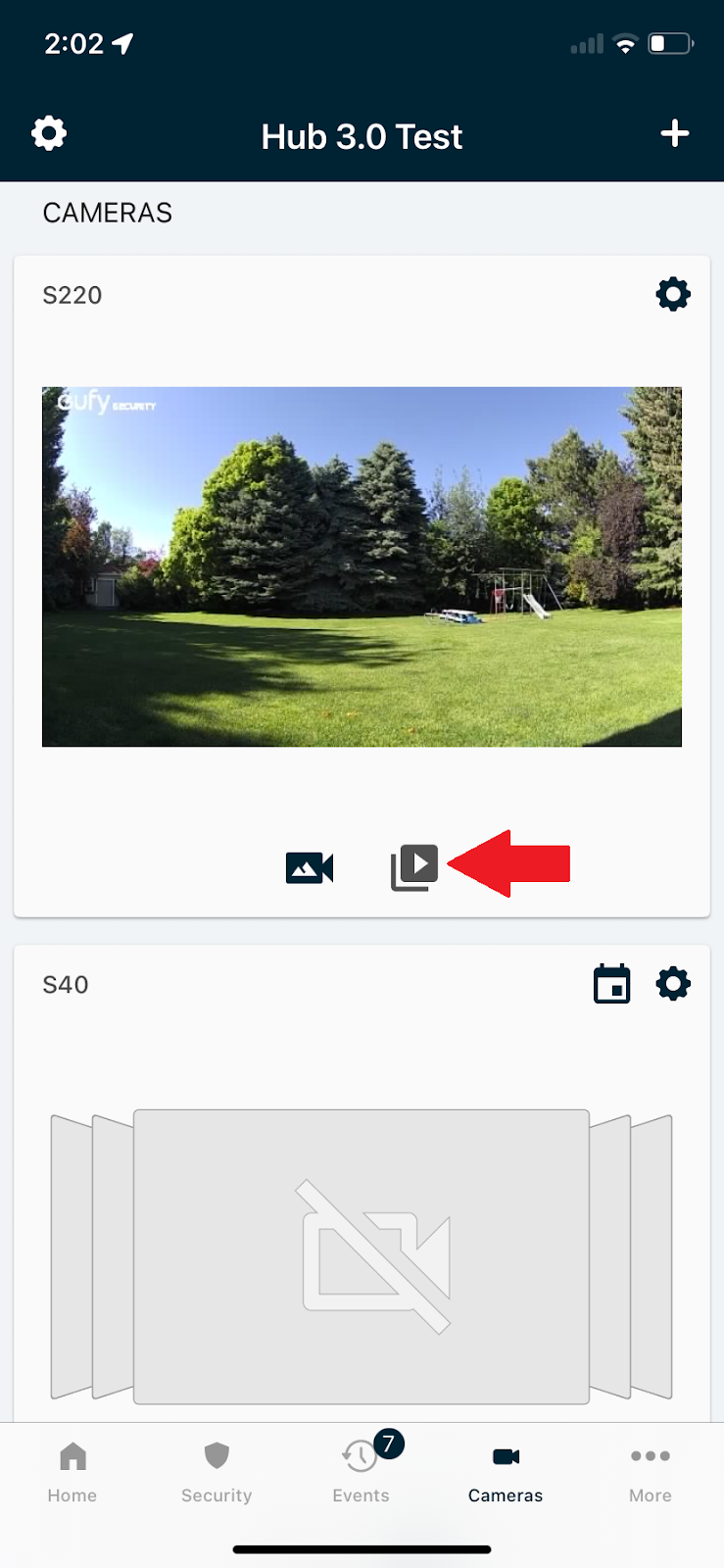
    Once the camera’s thumbnail image appears, tap the "Clips" tab to view saved recordings:

     
  8. Download Your Clip.
     
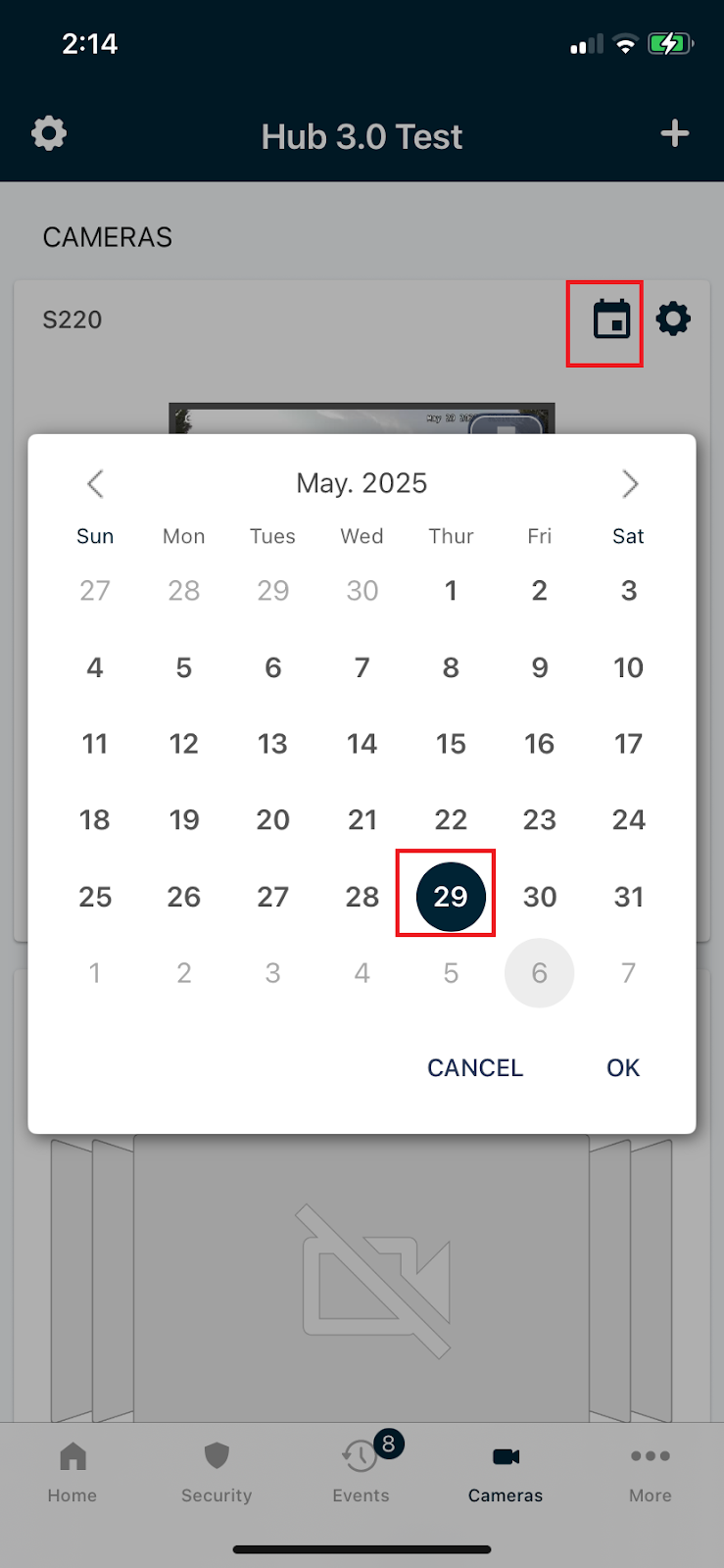
  9. After tapping on the “Clips” icon you can view clips from the current day or tap on the calendar icon in the top right and select a different day’s clips to view as seen below:

     
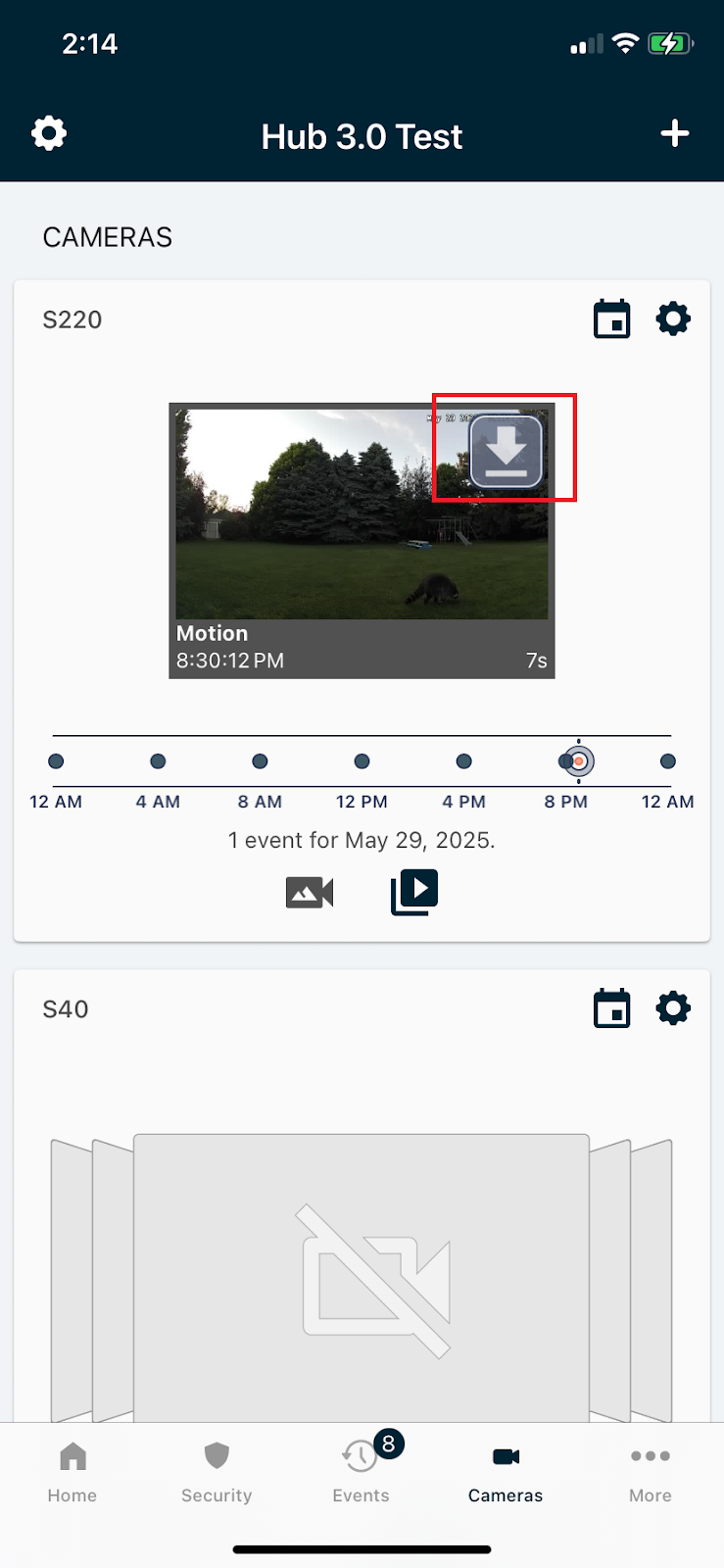
  10. After you have found your desired clip, you can tap on the download icon to save the clip to your device, as seen below:


Helpful Tips

Make sure you're connected to a strong and stable internet connection (Wi-Fi recommended for faster loading).
 

If clips are not loading after several minutes, try closing and reopening the app.
 

Not all cameras support cloud clip storage. Ensure the model you're using has this feature.
 

The download option may vary slightly by device (Android/iOS) and app version.

footage storage recordings eufy download

Was this article helpful?

Yes
No

Related Articles

  • Mounting Your Eufy Indoor Camera
  • Eufy App features that are currently unavailable in the Alder App

Services

  • Home Security
  • Home Security Cameras
  • Medical Alert Systems
  • My Account

Company

  • Careers
  • Contact
  • Verify Rep
  • About
  • Locations
800.710.1289

Copyright Alder Holdings, LLC

Privacy Policy | Licensing


br

Definition by Author

0
0
Expand