Contact Us

If you still have questions or prefer to get help directly from an agent, please submit a request.
We’ll get back to you as soon as possible.

Please fill out the contact form below and we will reply as soon as possible.

  • Alder Knowledge Base Home
  • Contact Us
  • Home
  • Luna Simple Panel
  • Installation

Stuck During Setup Process Step 1-6

Updated at December 18th, 2025

Contact Us

If you still have questions or prefer to get help directly from an agent, please submit a request.
We’ll get back to you as soon as possible.

Please fill out the contact form below and we will reply as soon as possible.

  • Account
  • Alder Alula System
    Installation Using System Arming/Disarming System Troubleshooting
  • Luna Simple Panel
    Installation Preferences and Settings Using System Arming/Disarming System Troubleshooting History and Alarm Events
  • FAQ
  • Alder App
    Alder App- Troubleshooting
  • GC2 Panel
    Using the GC2 Panel Troubleshooting the GC2 Panel FAQ - GC2 Panel
  • Cameras
    Outdoor Camera - Alder Indoor Camera - Alder Doorbell Camera How to Use- Cameras Troubleshooting- Alder Camera
+ More

If you are having trouble during installation, this article will help you:

  • Understand the pre-installation steps your panel goes through
  • Troubleshoot your panel if it gets stuck during the first six steps

Pre-Installation Steps

Once your Alder system arrives, start by plugging in the panel. When the panel powers on, the screen will turn blue and begin progressing through six pre-installation steps:

  1. Establishing communication with the cell tower
  2. Connecting to the network
  3. Registering the panel with the server and sending data
  4. Receiving confirmation from the server that the system is registered
  5. Receiving an IP address from the server
  6. Connecting to the server and coming online


Troubleshooting Steps

If your panel becomes stuck during installation, the recommended action depends on which step you are on.

Steps 1–3: Unable to Establish Connection

Your panel communicates with the monitoring station using the cellular chip located on the back of the panel.

If the panel is stuck on Steps 1–3 after being plugged in, call Support for assistance.


Step 4: Registration Issue

Call Support and verify that the Interactive ID (serial number) in the system matches the serial number on the back of your panel.


Steps 5–6: Panel Not Coming Online

Perform a hard reset on the panel.

After the panel powers back on, it should move through Steps 1–6 without issue.


After Installation Wizard Completes

If your panel skips directly to the “I’m Ready to Arm” screen:

  • Use the related articles below to ensure all sensors are installed correctly
  • Once sensor installation is complete, call Support to activate your system with the monitoring station


Completing Installation

If the installation wizard does not appear after restarting the panel, make sure that:

  • All sensors are added to the panel and responding
  • Sensors are installed in their final locations
  • The system is fully tested after installation

If sensors will not verify during installation, refer to the sensor troubleshooting article to complete setup.
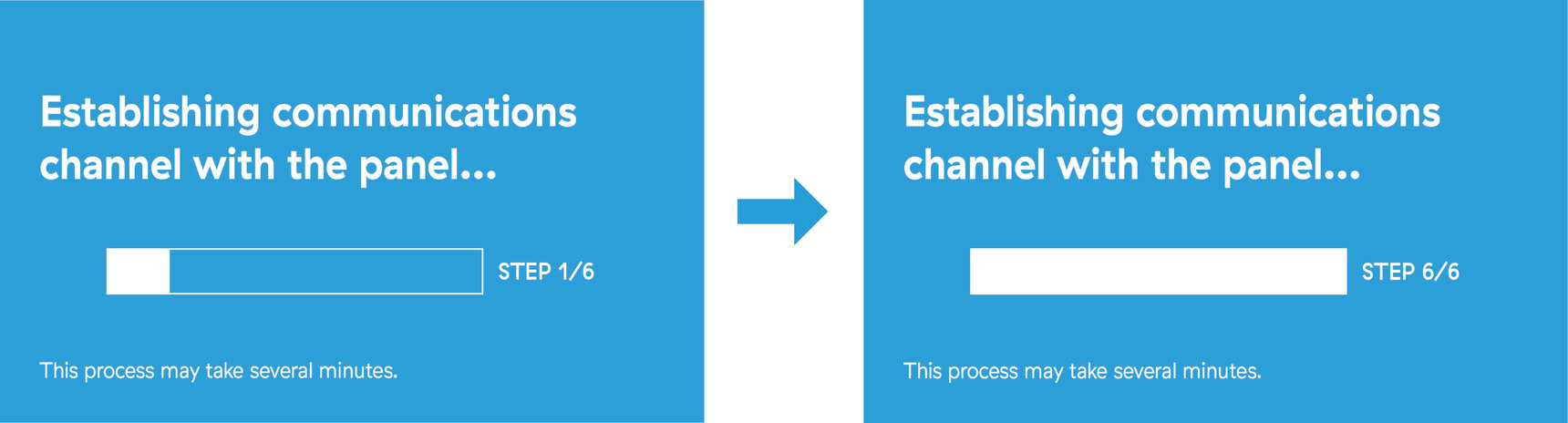
 
 
installation error setup stuck during setup process step 1-6 stuck installation

Was this article helpful?

Yes
No

Related Articles

  • Powering the Luna Simple Panel
  • Where to install my Luna Simple Panel?
  • Install & Setup- Luna Simple Security System
  • Add New Sensors (to panel)

Services

  • Home Security
  • Home Security Cameras
  • Medical Alert Systems
  • My Account

Company

  • Careers
  • Contact
  • Verify Rep
  • About
  • Blog
  • Locations
800.710.1289

Copyright Alder Holdings, LLC

Privacy Policy | Licensing


br

Definition by Author

0
0
Expand